
Active@ CD/DVD/Blu-ray Burner
Burn CD, DVD and Blu-ray discs with ease
Active@ Data CD/DVD/Blu-ray Burner is a dialog-style software to burn Data CD/DVD/Blu-ray discs.
Command line parameters are supported to automate the data burning process.
To simplify the data burning process - all parameters you entered are stored as user's settings. Next time you run the software - previous settings appear in the dialog. Collection of items in the file tree can be saved and loaded later on.
- Minor improvements
Key Features
Simple UI
Easy to use dialog based user interface
Command Line Parameters
Command line parameters are supported to automate the data burning process
UDF and ISO 9660 support
Select either UDF (Universal Disc Format) or ISO 9660 + Joliet file system
Various burning options
Specify burn speed, test mode, data verification and other options
Burn files and folders to the CD/DVD/Blu-ray disc
Step 1. Specify files and folders to be burned.
-
Click Add File toolbar button
 to add a single file, or several files (multi-selection supported) to a collection using the standard Open File dialog.
 -
Click Add Folder toolbar button
 , or press Insert key, to add a single folder to a collection using the standard Browse for Folder dialog.
 -
Choose Create New Folder menu item from drop down menu of Add Folder toolbar button, to create a new folder within a tree.
-
Use context menu over File Tree area to execute the same commands.
-
You can also Drag and Drop files and folders to the File Tree area from the Windows Explorer
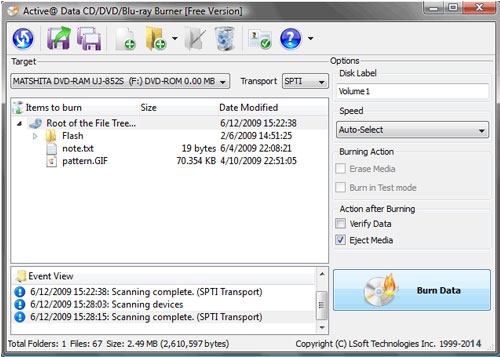
Step 2. Choose a Target, or burning device and transport: SPTI, SPTD or ASPI:
-
SPTI - This transport is preferable for NT-based systems (NT4/2000/XP/Vista). It can't be used for Windows 9x (95/98/ME) systems. Under Vista allows to burn user without Admin's rights. XP and earlier systems – Admin's rights required.
-
SPTD - This transport is preferable for NT-based systems (NT4/2000/XP/Vista). It can't be used for Windows 9x (95/98/ME) systems. Requires special drivers to be installed and machine reboot is needed. If drivers installed properly - allows any local user to burn (without Admin's rights). Look into Active@ Data Burner installation folder for files SPTDinst-v162-x64.exe and SPTDinstv162- x86.exe to install SPTD drivers on x64 & x86 plathform respectively.
-
ASPI - Intended for Windows 9x systems (98/ME). For others still supported in compatibility mode, but requires winaspi32.dll in the application directory.
Step 3. In Options - specify burning preferences:
-
Disc Label - by default it is a current date.
-
File System - select either UDF (Universal Disc Format) or ISO9660+Joliet
-
Speed - select one of available speeds supported by burner and media combination.
-
Erase Media - for Read-Write (RW) media type - erases it first before burning starts
-
Burn in Test mode - simulates burning process, but laser is turned off
-
Verify Data - after burning is complete - verify how data has been written, check for reading errors
-
Eject Media - after burning is complete - eject CD/DVD/Blu-ray
-
Quit Burner - after burning is complete – exit an application
-
Shutdown PC - after burning is complete – shut down and turn off the personal computer
Step 4. Insert a blank CD/DVD/Blu-ray disc into the CD/DVD/Blue-ray disc drive and click the Burn Data button.
Step 5. See the progress. To cancel data burning you can click the Cancel button.
Automation of burning data to CD/DVD/Blu-ray
Command line syntax:
DataBurner.exe [/ADD=FOLDERPATH] [/FILE=FULLPATH] [/BURN] /[EXIT-IF-OK]
[/ERASE] [/VERIFY] [/EJECT] [/TITLE=LABEL] [/FS=[0-CDFS, 1-UDF]]
[/QUIT] [/SHUTDOWN] [/BURNER=[1,2…]]
Software accepts command line parameters to automate burning process:
/ADD=FOLDERPATH - adds a folder to the list of items to be burned. FOLDERPATH parameter is a full path (i.e. "C:\Program Files\My Folder\") to the target item to be burned. Must be in quotes if contains spaces.
/FILE=FULLPATH - loads a tree from a collection being saved previously. If item exists in collection, but not on disk, it just being ignored. FULLPATH parameter is a full path (i.e. "C:\Program Files\My Folder\My Collection.cdb") to the saved collection. Must be in quotes if contains spaces.
/ERASE - erases RW media before burning starts. Ignored if media not RW.
/VERIFY - file tree verification after burn process has completed.
/EJECT - ejects media after burning.
/TITLE=LABEL - sets a label for a disc to be burned. Must be in quotes if contains spaces.
/BURN - process of burning data CD/DVD starts automatically right after program launch. If some command line parameters not specified explicitly, last used parameters will be loaded for the command execution.
/EXIT-IF-OK - if command is successfully completed, program auto-exits. If errors detected - you will see error messages on the dialog (no auto-exit).
/FS=[0-CDFS, 1-UDF] - specifies which file system to use. Zero sets ISO9660, One sets UDF.
/QUIT - application exits after burning is complete
/SHUTDOWN – turn off the personal computer after burning is complete
/BURNER=[1,2…] – specifies target burner to use. One is first detected (displayed in combo box).
You cannot use parameters /ADD and /FILE all together.
Example: To burn Data CD/DVD automatically from command line and exit the program after successful burning, run:
C:\> DataBurner.exe /ADD="C:\Temp\My Folder" /VERIFY /EJECT /BURN /EXIT-IF-OK /FS=1 /TITLE="My Album"
This command adds a content of folder "C:\Temp\My Folder" (with all its content - recursively) to the list of items to be burned, sets a label "My Album" and starts burning immediately after loading using UDF file system, verifies data when burning is complete, ejects media, and exists if no errors detected.