
How to create a CD/DVD-ROM ISO Image file?
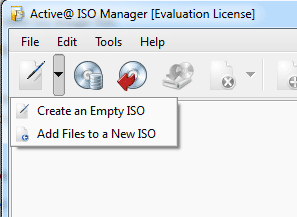
Step 1. Create a new ISO image file:
-
To create toolbar button, or choose File > Create ISO Image > Create ISO Image command
-
To import some files and folders to a newly created ISO: click Import ISO image toolbar button, or choose a related command from the menu. Add existing folder to a new ISO image
Step 2: Add more data to ISO image file:
-
Select a folder in a file tree where you want data to be added
-
Click Add File toolbar button or a related command from the Edit menu to add a file or group of files
-
Click Add Folder toolbar button or a related command from the Edit menu, or press Insert key to add a folder
-
If you want a new custom folder to be created inside ISO's file tree, click Create new folder toolbar button, or choose a related command from the Edit menu, or from the context menu. Enter the name of the folder and click Create button
-
Drag'n'Drop files and folder from the Windows Explorer to the place within ISO's file tree to add them to ISO
Step 3: Specify ISO label and boot options:
-
At bottom of the working area type a label for the CD/DVD/Blu-ray which will be displayed in Windows Explorer and CD/DVD/Blu-ray drive properties
-
To make an ISO bootable, click Add Boot Image checkbox and specify emulation type (Floppy 1.2MB, 1.44MB, 2.88MB or HDD) and boot image to be added to boot area
Step 4: Compile and save the ISO Image:
-
Click the Save ISO image toolbar button, or choose a related command from the File menu, or press Ctrl+S
-
Choose a name and location for the ISO image file to be created and click Save
-
Wait while the ISO image being compiled. You can see the progress and click the Cancel button to cancel the ISO image compilation process
How to create an ISO Image from a CD/DVD/Blu-ray Disc
-
Click Make ISO from CD/DVD/Blu-ray toolbar button, or choose a related Select a source CD/DVD/Blu-ray reader/writer device where you inserted a data CD/DVD/Blu-ray disc
-
Select a target ISO image file name and path and click
-
Select a target ISO image file name and path and click Make
- Wait while the ISO image being created. You can see the progress and click the Cancel button to cancel the ISO image creation process