
How to burn Source Files & Folders directly to CD/DVD-ROM (by-passing ISO Image)?
-
Make sure that that the Source is Files & Folders in the Create ISO image section. The BURN SRC button should be enabled in this case.
-
Specify files and folders to be burned in the Base and Extra areas. See How to create a CD/DVD-ROM ISO Image for more details.
-
Specify a Volume Label, File System type, and Bootable options.
-
Choose a proper Burner (if you have more than one) and a burning speed to apply.
-
Insert a blank CD/DVD-ROM into the CD/DVD-ROM drive and click the BURN SRC button.
-
See the progress. To cancel ISO image burning, you can click the STOP button.
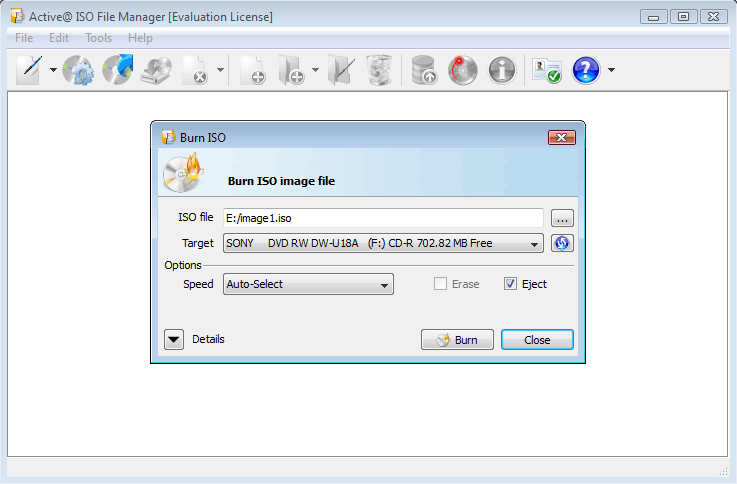
How to burn an ISO image file to CD/DVD/Blu-ray
-
Click Burn ISO image toolbar button, or choose a related command
-
Verify the path to the ISO image file to be burned, or select another ISO image file
-
Choose a proper burning Target (if you have more than one burner), burning speed and other options
-
Insert a blank CD/DVD/Blu-ray into the CD/DVD/Blu-ray drive and click the Burn button
-
See the progress. Open Details if you want to see the burning log
-
To cancel ISO image burning you can click the Cancel button